

Dayparting is a powerful strategy that allows you to optimize your Amazon PPC campaigns based on specific times of the day or days of the week. By aligning your bids with the moments your target audience is most active or likely to convert, you can maximize your ROI and reduce wasted spend during "dead" hours.
⚠️ Important Rules & Considerations
Before setting up your first automation, please review these critical guidelines:
Bid Change Location: We strongly recommend making bid changes inside Ad Badger rather than Amazon Seller Central. Because Ad Badger syncs data once daily, changing a bid in Amazon without a manual sync may cause Dayparting to run on an outdated bid.
Bid Optimization Conflict: Enabling Dayparting on a campaign will automatically disable "Bids by Badger" Bid Optimization for that specific campaign.
Marketplace-Based Schedule: All schedule timings align with the marketplace’s local timezone (e.g., a US marketplace campaign follows US time).
Campaign Limits: You can daypart up to 1,000 campaigns at this time. If you need to exceed this limit, please contact our support team.
No Bulk Campaigns: Bulk campaigns are currently not supported for this feature.
Accessing Dayparting
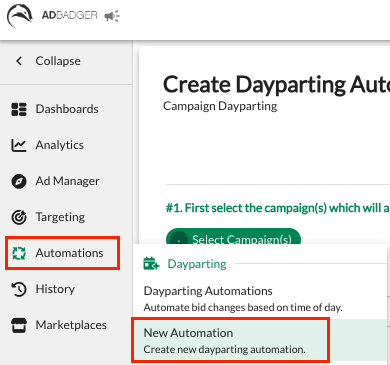
Navigate to the Automations tab in the left-hand sidebar.
Under the Dayparting section, select New Automation.
How to Create Your Dayparting Automation
The setup process is broken down into three easy steps:
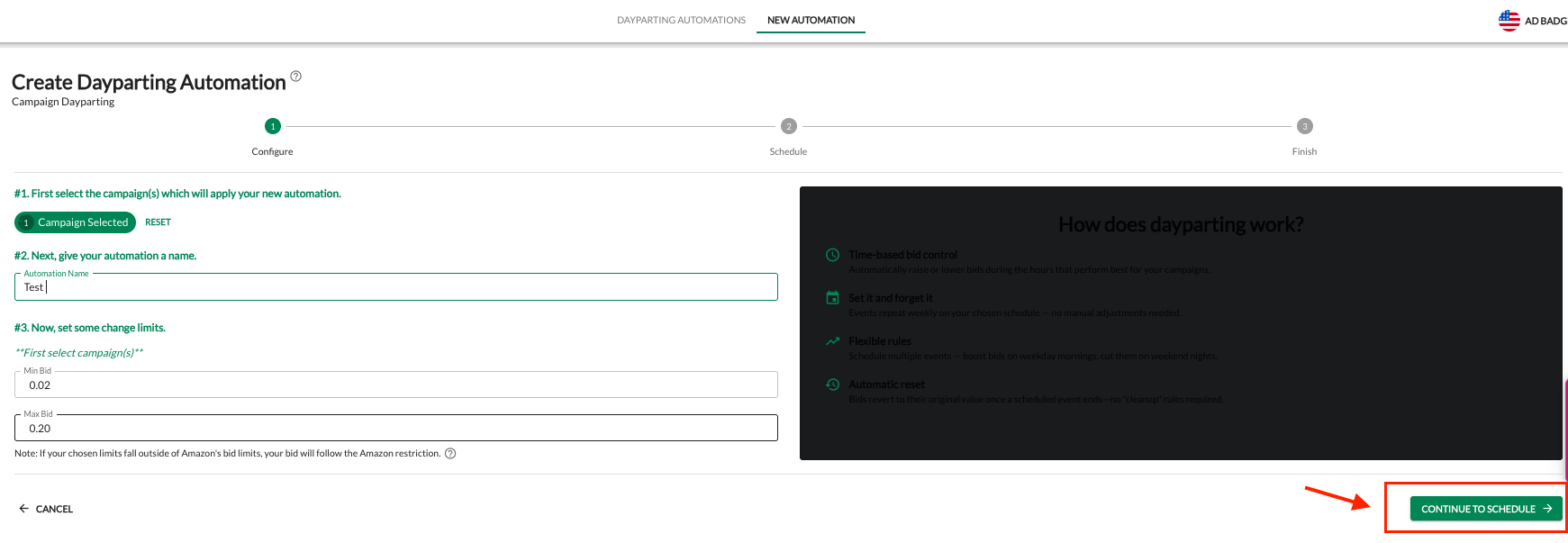
Step 1: Configure
Select Campaign(s): Choose the campaigns you wish to automate.
Name Your Automation: Give it a clear name (e.g., "Weekday Morning Boost").
Set Change Limits: Define your Min Bid and Max Bid. This acts as a safety net; Ad Badger will never push your bids outside of these boundaries.
Click Continue to Schedule.
Step 2: Schedule (Defining Your Events)
In this section, you create "Events" to tell Ad Badger exactly how to change your bids.
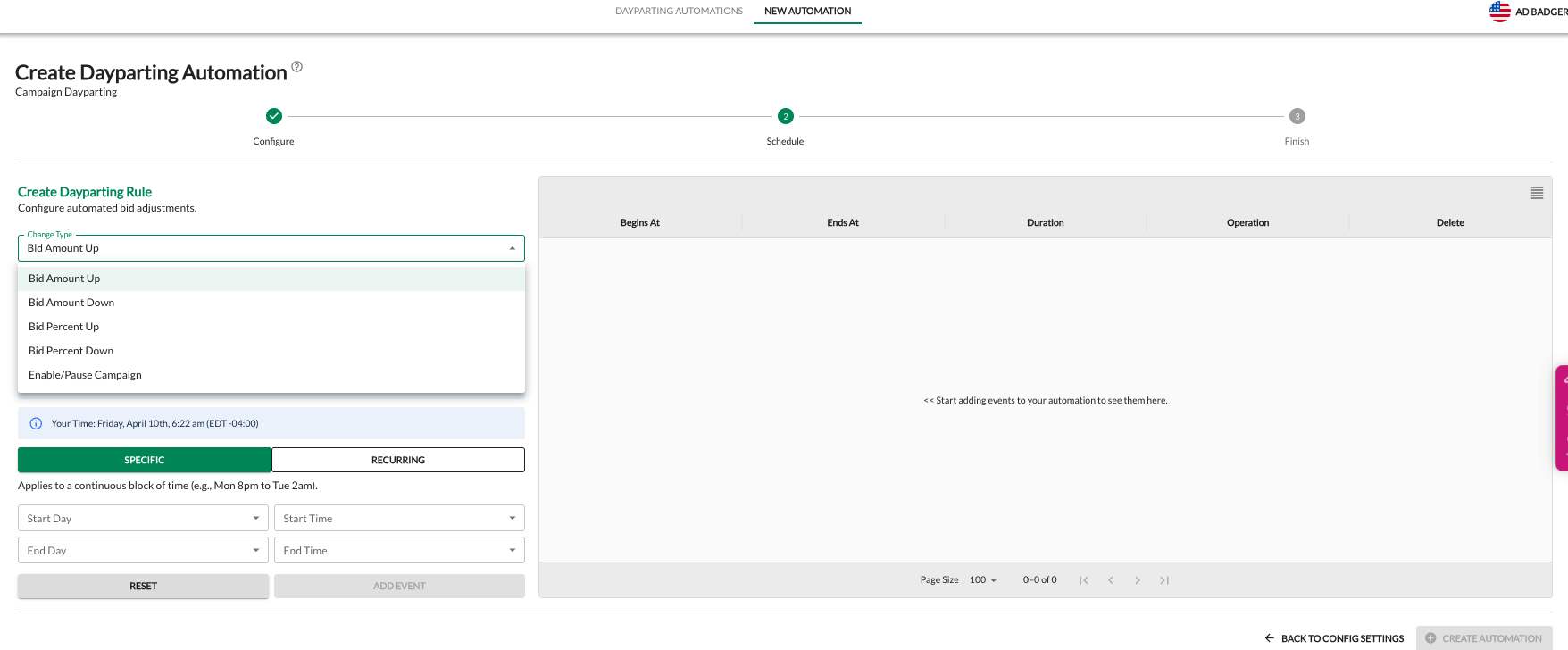
1. Choose Your Change Type:
Bid Amount Up/Down: Change the bid by a specific dollar amount (e.g., +$0.50).
Bid Percent Up/Down: Change the bid by a percentage (e.g., -20%).
Enable/Pause Campaign: Fully toggle the campaign on or off during specific times.
2. Select Your Frequency:
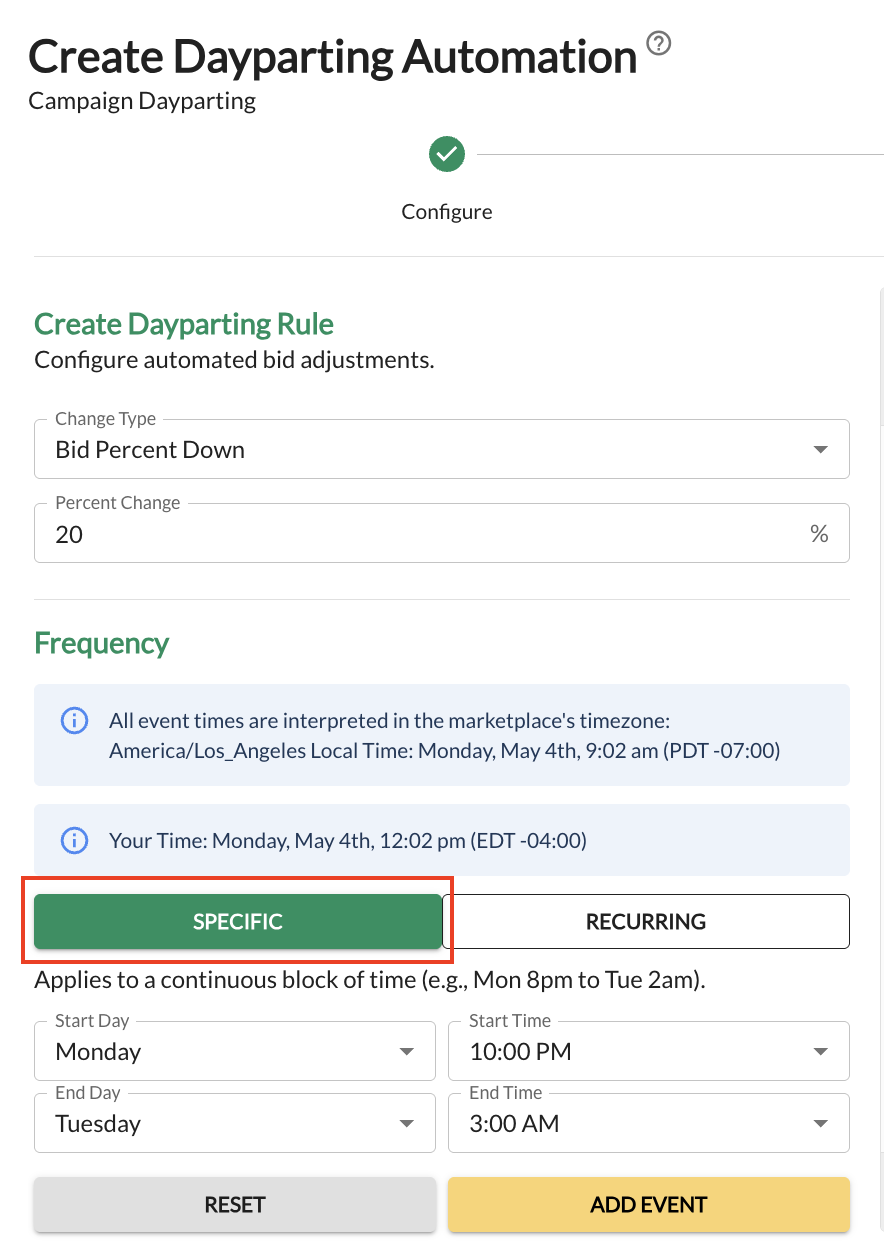
SPECIFIC: Applies to a continuous block of time (e.g., Monday 8:00 PM to Tuesday 3:00 AM).
RECURRING: Applies to selected days individually (e.g., 7:00 AM – 10:00 AM every Monday & Wednesday). You can use quick-select buttons for Daily, Weekdays, or Weekends.
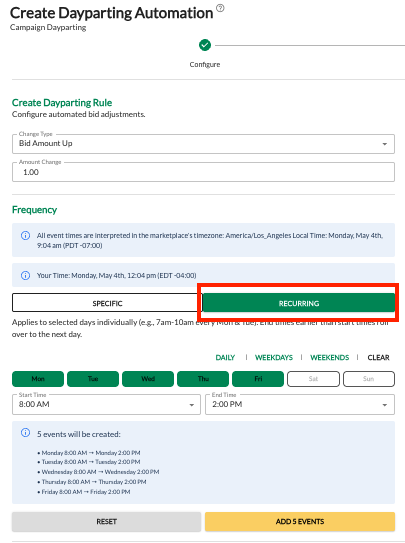
🌙 NEW: Midnight Mastery (Overnight Dayparting)Recurring events now fully support the midnight threshold! Previously, a recurring overnight strategy required two separate events per day. Now, you can create a single recurring event that seamlessly spans across midnight (e.g., Daily, 10:00 PM to 2:00 AM). Ad Badger will automatically handle the transition into the next morning for all selected days.
3. Add Event:Once your time and bid changes are set, click the yellow Add Event button. You can add multiple events to a single automation to create a complex 24-hour bidding strategy.
Step 3: Finish
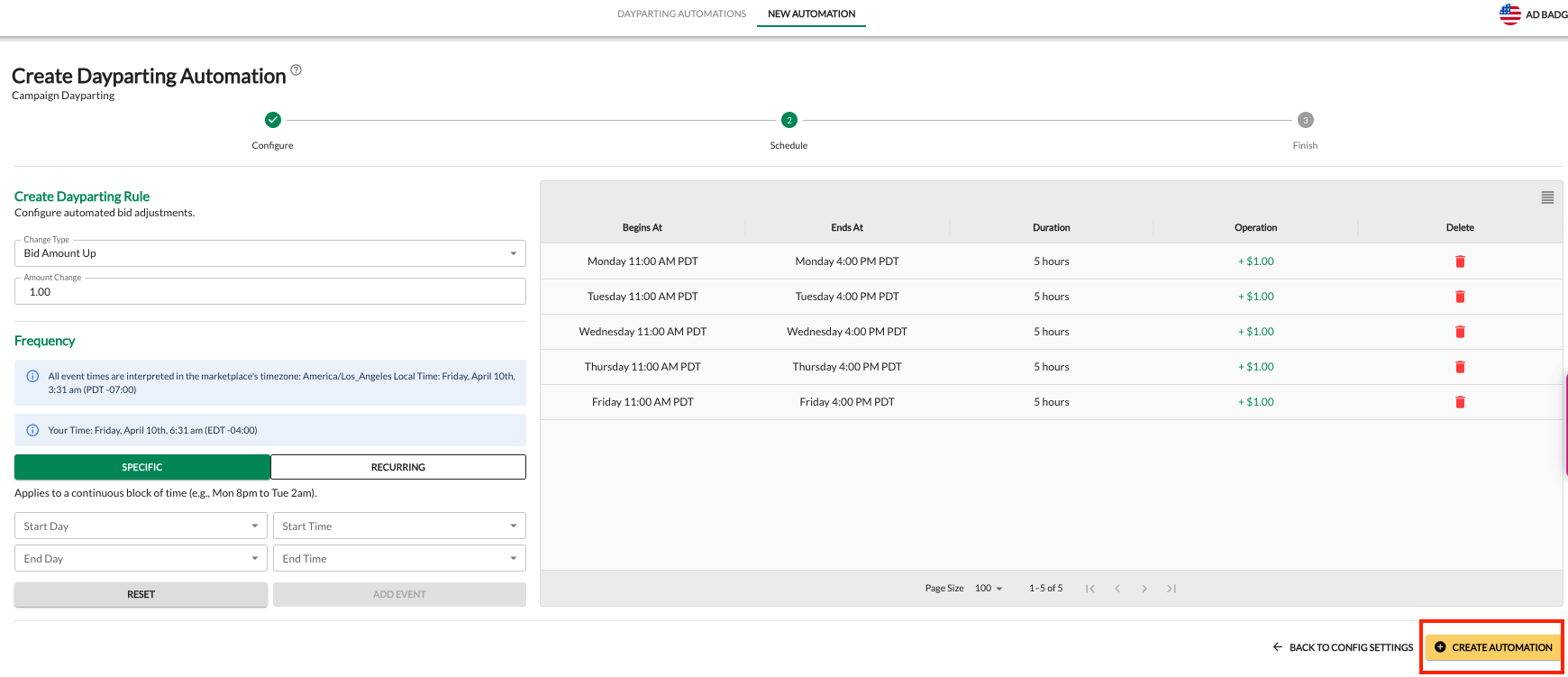
Review your scheduled events in the summary table on the right. Once satisfied, click Create Automation to go live.
Why Use Dayparting?
Bid Control: Automatically raise bids during high-conversion hours and lower them when traffic is less likely to buy.
Set and Forget: Events repeat weekly based on your chosen schedule—no manual adjustments needed.
Automatic Reset: Bids revert to their original value once a scheduled event ends—no "cleanup" rules required.
💬 Need Help?
Reach out to our Support Team anytime through the Live Chat bubble in the lower-right corner of the tool.