
The History section of Ad Badger is your account’s "black box." It provides a transparent, searchable record of every change made to your bids and every action taken by your automations. Whether you are auditing your performance or troubleshooting a specific campaign, the History log ensures you always know exactly what changed, when, and why.
Accessing the History Logs
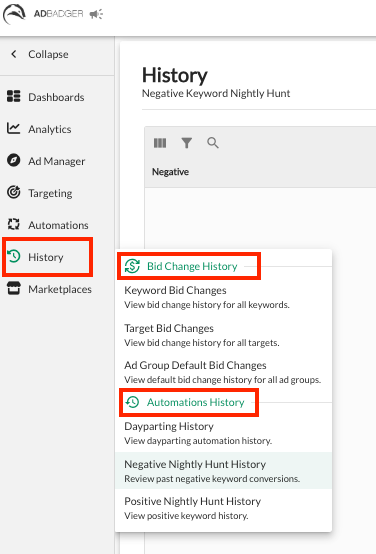
Navigate to the History tab in the left-hand sidebar.
Choose between Bid Change History or Automations History based on what you need to review.
1. Bid Change History
This section tracks adjustments to your active bids across three different levels:
Keyword Bid Changes: View a chronological list of bid adjustments for all individual keywords.
Target Bid Changes: Monitor bid history for all product targets (ASINs) and categories.
Ad Group Default Bid Changes: Track changes made to the default bid at the ad group level.
What you’ll find here:
The specific Change Date and time.
The Old Bid vs. the New Bid.
The Source of the change (e.g., if it was changed manually or by an automation).
2. Automations History
This log is essential for monitoring the "Nightly Hunts" and other automated tasks running in the background of your account.
Dayparting History: Review the log of when bids were raised, lowered, or when campaigns were paused/enabled based on your dayparting schedule.
Negative Nightly Hunt History: See a list of exactly which search terms were converted into negative keywords. This is a great place to ensure your "rules for failure" are working as intended.
Positive Nightly Hunt History: Track your keyword harvesting success. This log shows you which high-performing search terms were promoted to new keywords or targets.
Why Use the History Logs?
Total Transparency: We believe you should never be in the dark about how your money is being spent. The history log provides full accountability for every automated action.
Troubleshooting Performance Shifts: If you notice a sudden spike or drop in performance, the History log can help you identify if a specific bid change or automation coincided with that shift.
Audit Your Automations: Periodically review your Negative Nightly Hunt History to ensure you aren't accidentally negativing terms you'd rather keep active (and then add those terms to your Never-Negatives list!).
Verify Dayparting: Confirm that your bids are correctly resetting after a scheduled event ends.
💬 Need Help?
Reach out to our Support Team anytime through the Live Chat bubble in the lower-right corner of the tool.