

The Search Term Quick Attack is a specialized tool designed for rapid-fire account optimization. It allows you to filter through thousands of search terms and take bulk action—specifically, negating unprofitable or irrelevant terms—faster than ever before.
Accessing Search Term Quick Attack
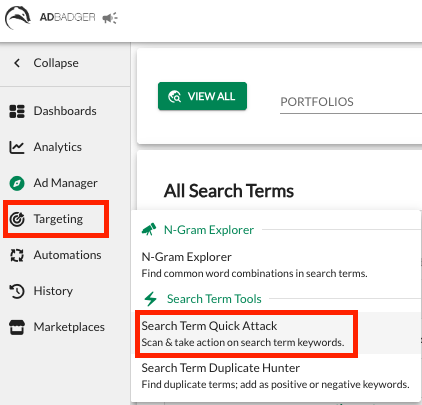
Navigate to the Targeting tab in the left-hand sidebar.
Select Search Term Quick Attack from the dropdown menu.
How to Bulk Negate Search Terms
The Quick Attack workflow is designed to help you find and block "bleed" in four simple steps:
1. Define Your Search
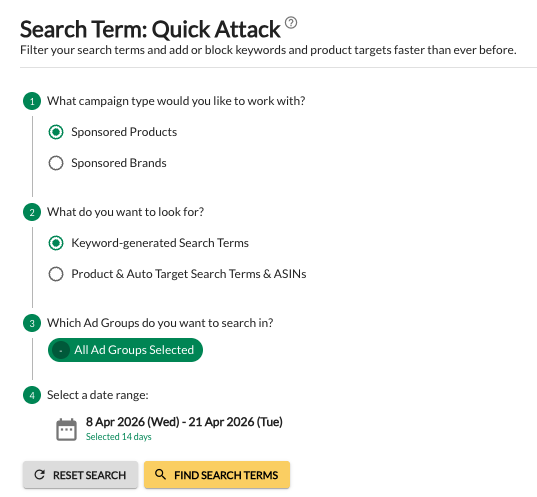
Start by narrowing down exactly what data you want to analyze:
Campaign Type: Choose between Sponsored Products or Sponsored Brands.
Targeting Type: Choose to look for Keyword-generated search terms or Product & Auto Target search terms/ASINs.
Scope: Select specific Ad Groups or scan all of them at once.
Date Range: Choose your lookback window (e.g., the last 14 or 30 days).
Click Find Search Terms to generate your list.
2. Filter for Poor Performance
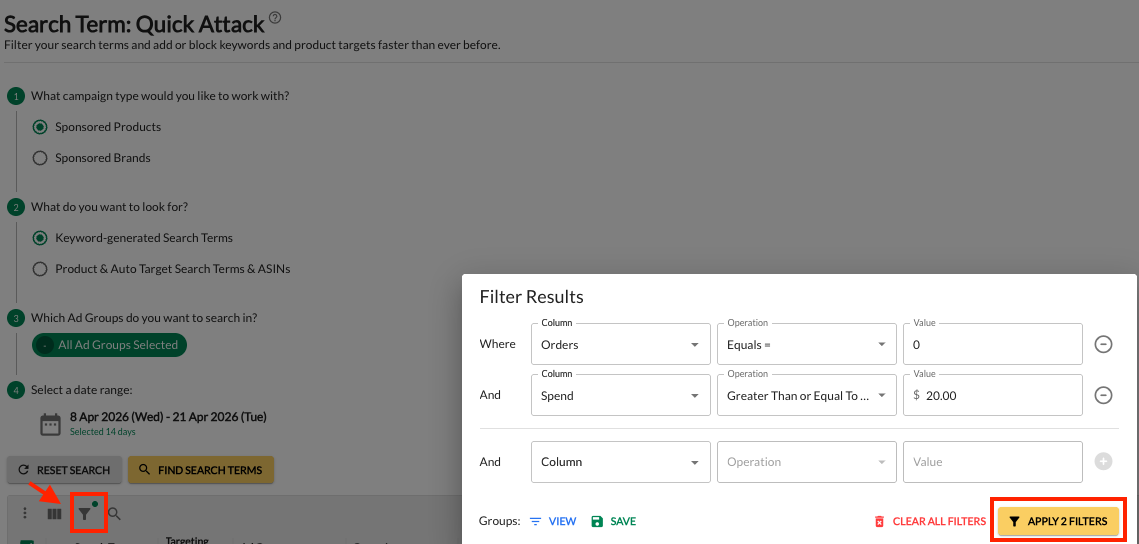
Use the filter icon above the data table to isolate terms that are wasting your budget.
Common "Quick Attack" filters include:
Orders Equals 0 AND Spend Greater than $20
Orders Equals 0 AND Clicks Greater than 10
ACOS Greater than 100%
3. Take Bulk Action
Once you have identified the irrelevant terms:
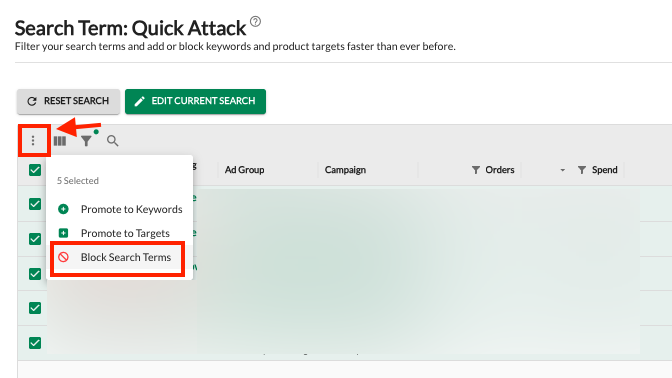
Select Terms: Check the boxes next to the terms you want to block (or use the "Select All" checkbox at the top).
Open Action Menu: Click the three-dot menu (vertical ellipsis) at the top of the table.
Choose "Block Search Terms": This will open the negation configuration window.
4. Configure Your Block
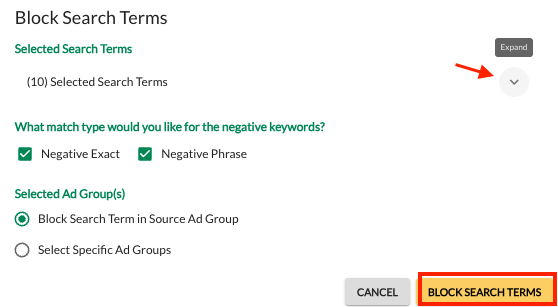
In the Block Search Terms pop-up, you can finalize how the negatives are applied:
Review Your Selection: You can click the expand arrow (small downward chevron) next to the number of selected search terms to see the full list of keywords you are about to block. This is a great final check to ensure you haven't included any terms by mistake.
Match Type: Select Negative Exact, Negative Phrase, or both.
Destination:
Block Search Term in Source Ad Group: The most common choice; this stops the spend exactly where it occurred.
Select Specific Ad Groups: Use this if you want to apply these negatives across other parts of your account simultaneously.
Click the yellow Block Search Terms button to finalize.
Why Use Search Term Quick Attack?
Speed: Negating 50+ terms one by one in Amazon can take an hour; here, it takes minutes.
Precision: By using the filtering system, you ensure you are only negating terms based on hard performance data.
Control: The ability to see the "Targeting Source" alongside the search term helps you understand exactly which Broad or Phrase keyword is triggering the irrelevant traffic.
Instant Optimization: It is the perfect tool for a "Monday Morning Audit" to quickly clean up spend from the previous week.
💬 Need Help?
Reach out to our Support Team anytime through the Live Chat bubble in the lower-right corner of the tool.