

The Search Term Duplicate Hunter is a specialized tool designed to identify search terms that are appearing in multiple places across your account. When the same search term is triggered in several different campaigns or ad groups, it can lead to "internal competition," making it difficult to control your bids and analyze performance accurately.
Accessing the Duplicate Hunter
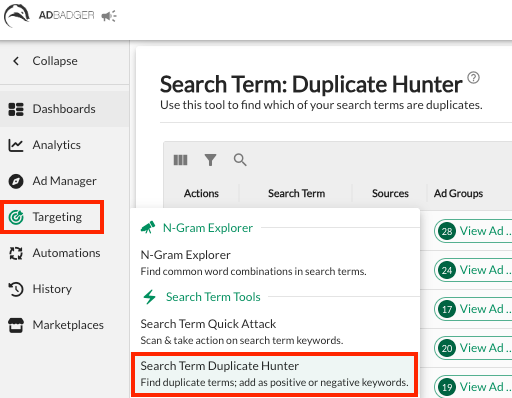
Navigate to the Targeting tab in the left-hand sidebar.
Select Search Term Duplicate Hunter from the dropdown menu.
How to Use the Duplicate Hunter
📅 Note on Data: The Duplicate Hunter automatically analyzes your search term data from the past 60 days to identify redundant targets.
1. Identify Duplicate Terms
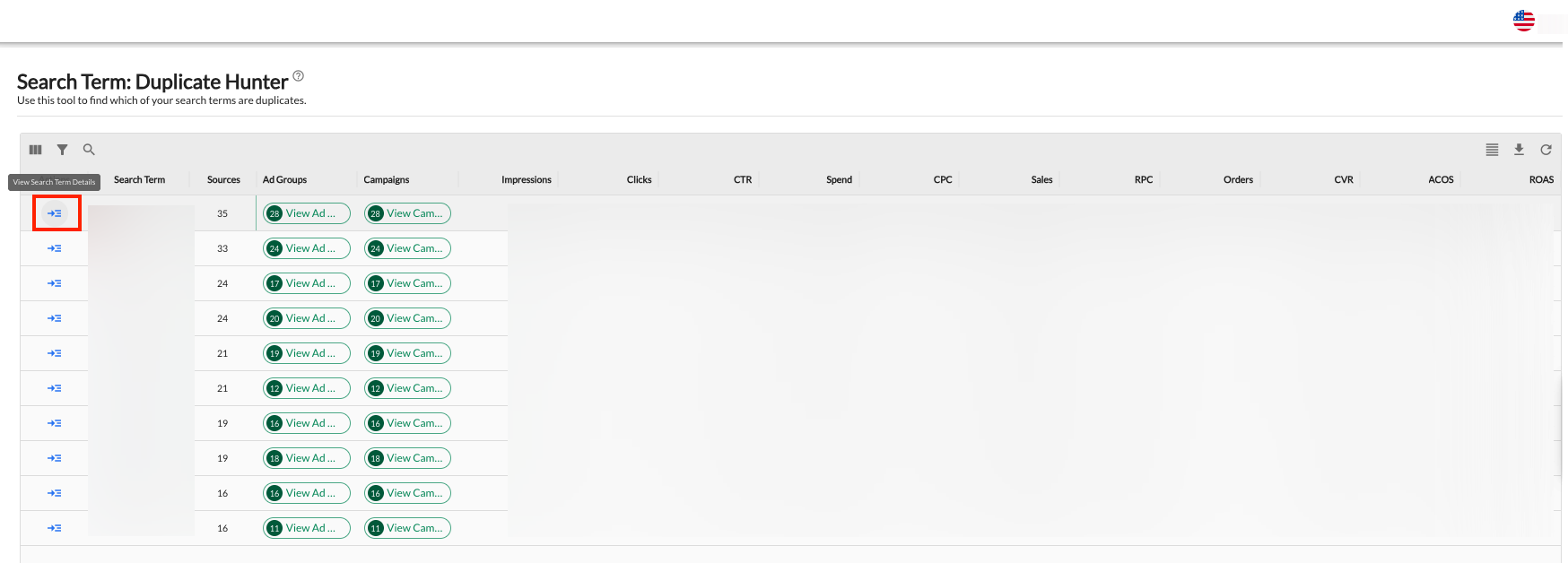
The main dashboard lists search terms that are appearing in more than one source.
NEW: Search Bar: Use the search box at the top of the Duplicate Hunter tool to quickly find specific keywords or ASINs. No more scrolling—just type the term you’re looking for to see every instance of it across your account.
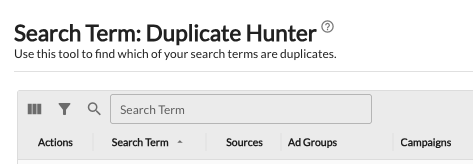
Sources: See the total number of unique locations (Campaigns/Ad Groups) where this specific term has appeared.
View Details: Click the blue arrow icon on the left of any term to open the Duplicate Details screen and take action.
2. Analyze the Details
The Duplicate Details screen shows you every single campaign, ad group, and match type currently associated with that search term. You can see the individual performance (Spend, Sales, ACOS) for that term in each specific location.
3. Take Action
Select the checkboxes for the specific instances you want to manage, then click the three-dot "Actions" menu to choose your strategy:
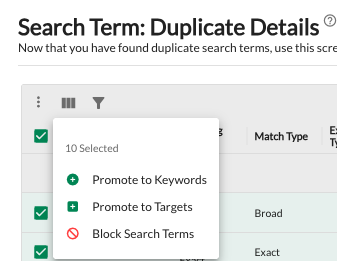
A. Promote to Keywords
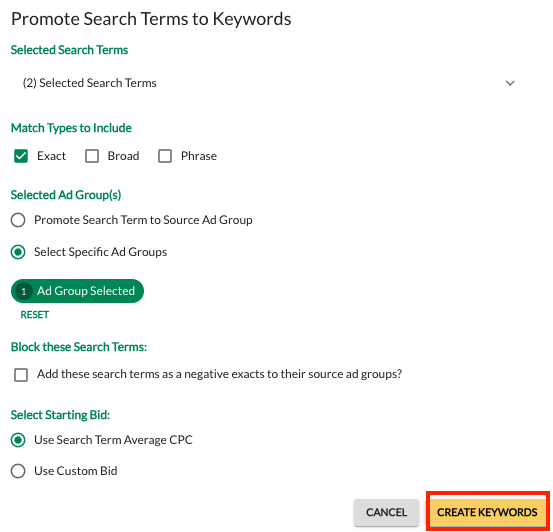
When you find a high-performing search term in your reports, "promoting" it allows you to turn that term into a dedicated keyword. This gives you direct control over its bid and helps you scale your winning traffic.
Review Your Selection: Click the expand arrow next to the number of selected terms to double-check the list before you create the keywords.
Match Types to Include: Select one or multiple match types (Exact, Broad, or Phrase). Ad Badger will create a separate keyword for each match type you check.
Best Practice: Most sellers promote winners to Exact for maximum control.
Selected Ad Group(s):
Promote Search Term to Source Ad Group: Adds the new keyword back into the same ad group where the search term originated.
Select Specific Ad Groups: Choose a different ad group (such as a dedicated "Performance" campaign) to house your new keywords.
Block these Search Terms (The "Funnel" Logic): Check the box to "Add these search terms as negative exacts to their source ad groups."
* Why use this? This prevents the original "Research" campaign (like an Auto or Broad campaign) from triggered that term again, forcing all traffic to go through your new, highly-optimized keyword.Select Starting Bid:
Use Search Term Average CPC: Sets the initial bid based on what you’ve actually been paying for that term.
Use Custom Bid: Manually enter a specific starting bid for the new keywords.
Finalize: Click the yellow Create Keywords button to finalize
B. Promote to Targets (ASINs)
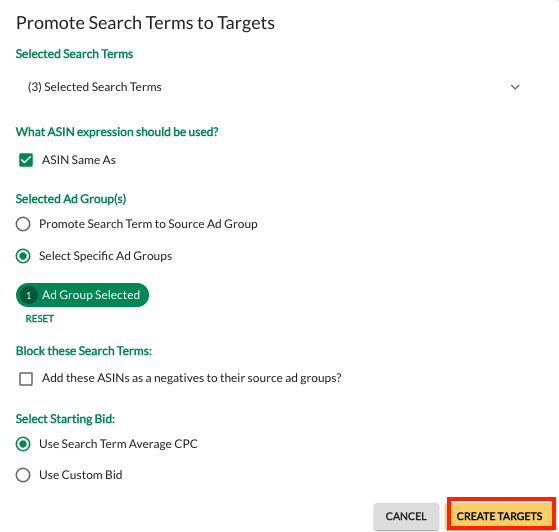
When a specific ASIN (Product ID) appears in your search term report as a high-performer, "promoting" it allows you to create a dedicated Product Target. This is essential for scaling your "conquesting" strategy or doubling down on specific competitor pages where you convert well.
Review Your Selection: Use the expand arrow (small downward chevron) next to the number of selected terms to review the specific ASINs you are promoting.
ASIN Expression: By default, ASIN Same As is selected. This ensures you are targeting that exact product page.
Selected Ad Group(s):
Promote Search Term to Source Ad Group: Adds the new target back into the same ad group where the ASIN was originally discovered.
Select Specific Ad Groups: Choose a dedicated "Product Targeting" campaign to keep your account organized and focused.
Block these Search Terms: Check the box to "Add these ASINs as negatives to their source ad groups."
* Strategy: This prevents the original Auto campaign from bidding on these ASINs, ensuring your budget is concentrated on your new, manually controlled target.Select Starting Bid:
Use Search Term Average CPC: Sets your bid based on your actual historical cost for that ASIN.
Use Custom Bid: Manually define a starting bid to be more or less aggressive than the current average.
Finalize: Click the yellow Create Targets button to finalize
C. Block Search Terms
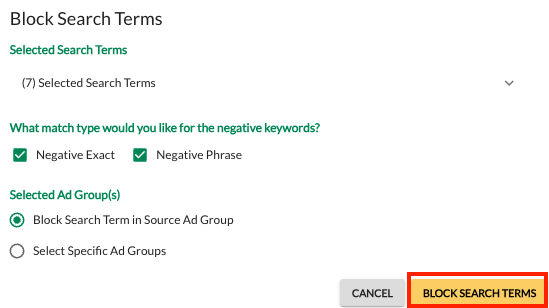
The Block Search Terms feature allows you to manually cut off spend on irrelevant or unprofitable traffic. By adding these terms as negatives, you prevent your ads from appearing for those specific queries in the future.
Review Your Selection: Click the expand arrow (the small downward chevron on the right) to see the specific list of search terms you are about to negative. This is your last chance to ensure you aren't accidentally blocking a high-performing term.
Match Type Selection: Choose how broad the block should be:
Negative Exact: Blocks that specific word or phrase only.
Negative Phrase: Blocks that phrase and any longer search terms that include it.
Pro Tip: You can select both for maximum coverage.
Selected Ad Group(s):
Block Search Term in Source Ad Group: This stops the term exactly where it triggered. It is the most common choice for precise optimization.
Select Specific Ad Groups: Use this to apply the block across other areas of your account (for example, if you find a "junk" term in one campaign and want to proactively block it in others).
Finalize: Click the yellow Block Search Terms button to finalize
Why Use the Duplicate Hunter?
Eliminate Internal Competition: Prevent your own ad groups from bidding against each other for the same customer search.
Account Cleanliness: Identify "messy" areas where a single term is scattered across too many campaigns.
Efficient Consolidation: Find terms that are performing well in multiple Auto or Broad campaigns and promote them to a single, high-performing Exact match keyword.
Data Clarity: When a search term only lives in one place, your data is cleaner, and your bid adjustments are much more effective.
💬 Need Help?Reach out to our Support Team anytime through the Live Chat bubble in the lower-right corner of the tool.